
Installation Instructions
Installation of the HERMES Home Dispatch Solution app onto your Hubitat Elevation Hub can be done via 2 methods :
- Manual
- Hubitat Package Manager (HPM)
Both methods will install the latest version of the app, so pick the method that best suits your needs. HPM is a very common method for Hubitat users to search for and install new apps and device drivers. We highly recommend installing HPM on your hub either way.
Method 1 : Manual
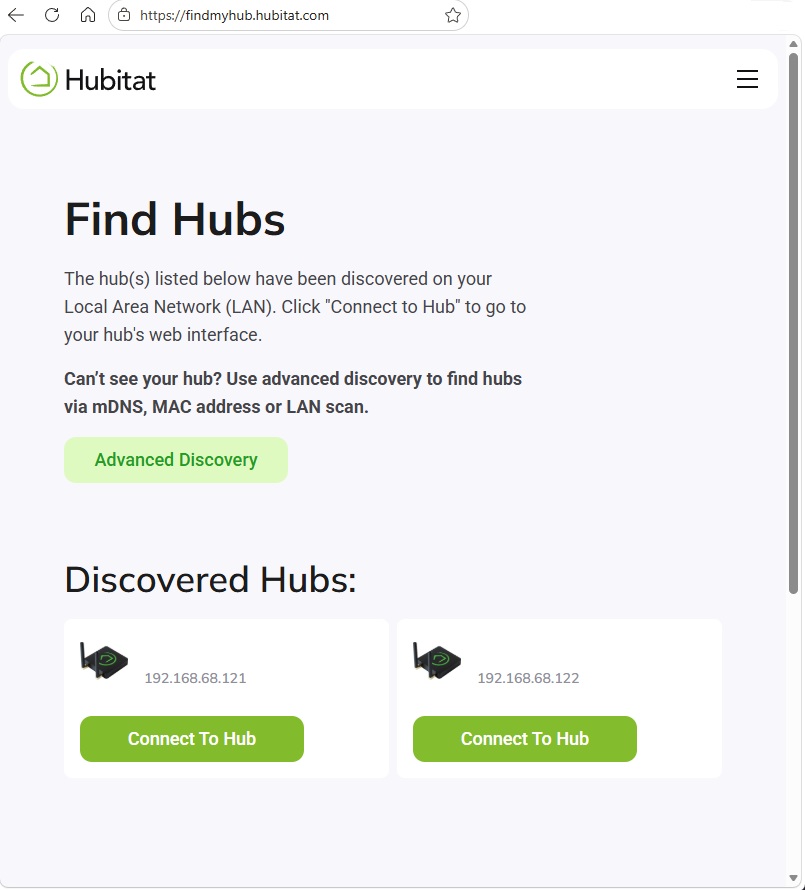
Step 1 : Access your Hubitat Elevation Hub via the browser. While logged into the same network as your hub, go to the find my hub tool on Hubitat's website. Connect to your hub.
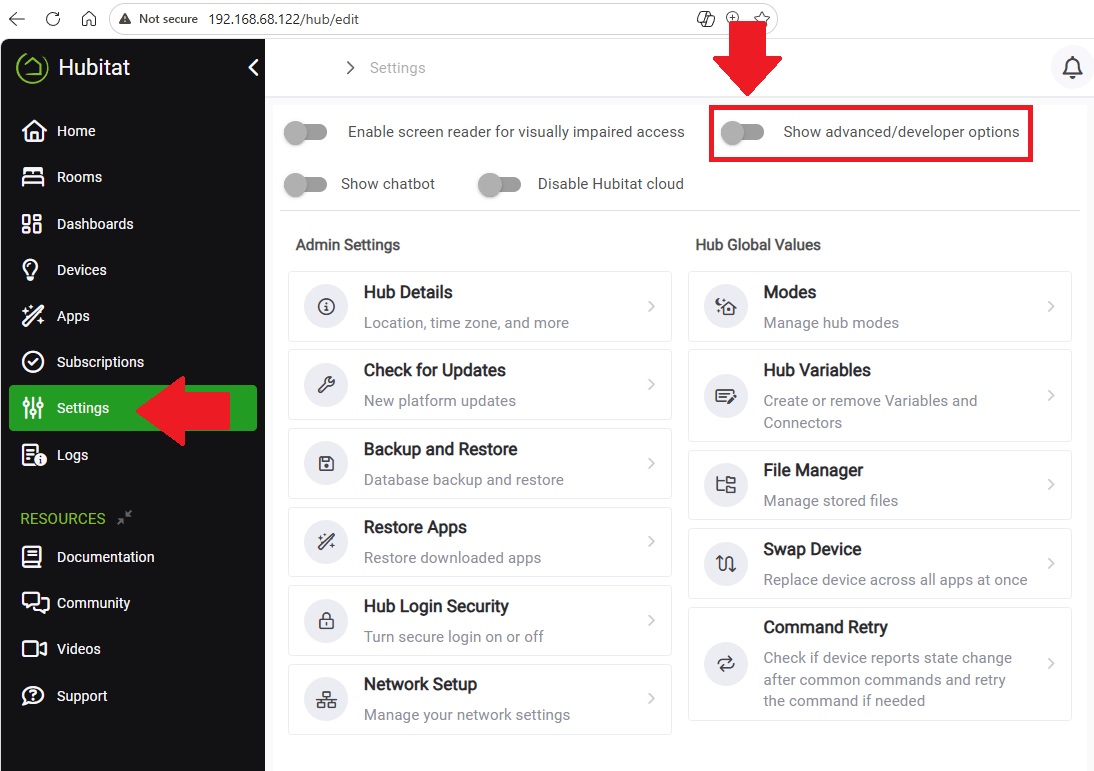
Step 2 : Ensure Developer options are enabled in your hub's settings.
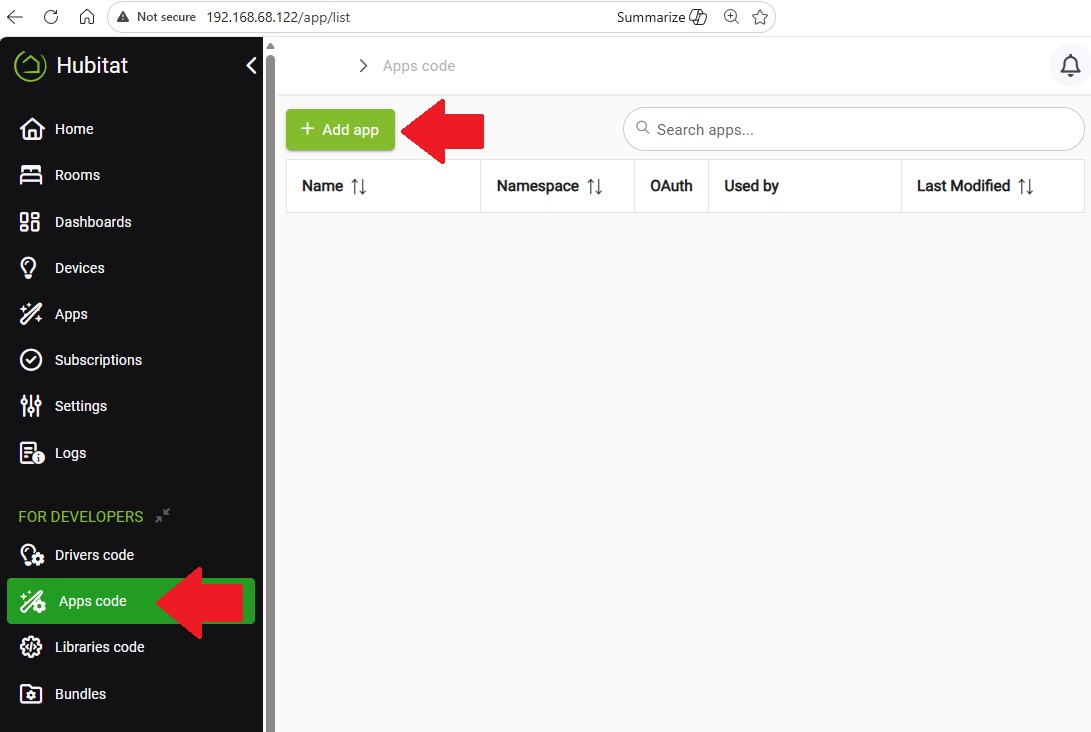
Step 3 : You should now see the "FOR DEVELOPERS" section in the left hand menu. Click "Apps code" and then "+ Add app".
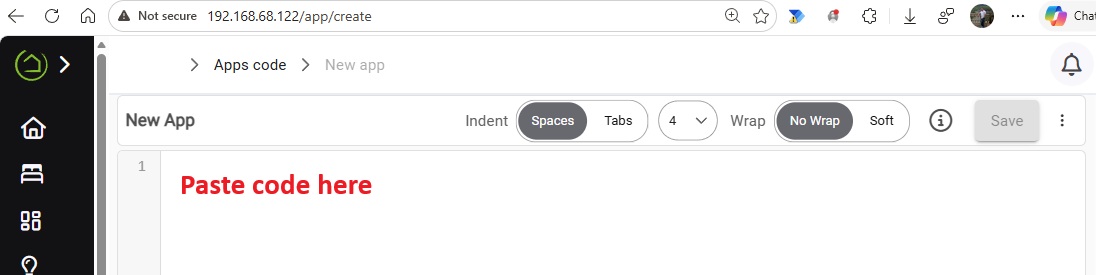
Step 4 : You can load the code via 2 methods per Hubitat's Documentation.
- You can go to our website, copy all the code, and paste it into the New App screen.
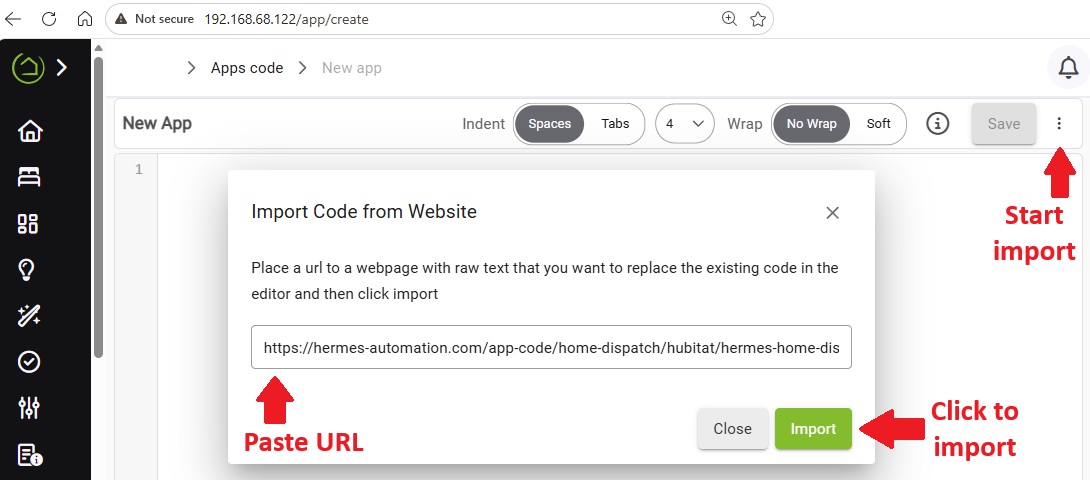
- Click the 3 dots in the top right of the screen, click "Import", paste the following URL "https://hermes-automation.com/app-code/home-dispatch/hubitat/hermes-home-dispatch.groovy", and click "Import".
- OR -
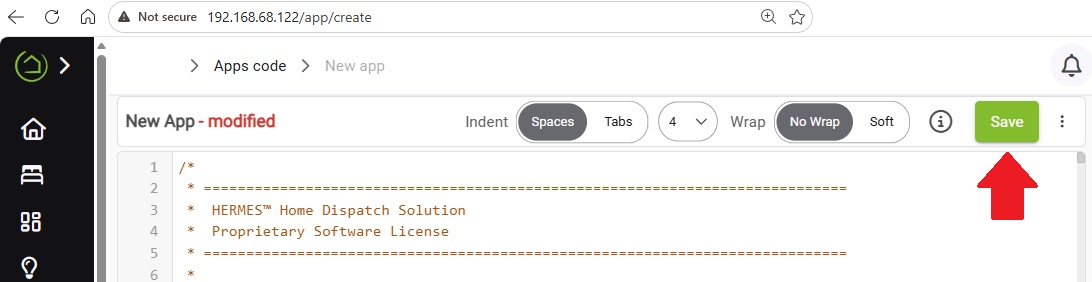
Step 5 : Save the code.
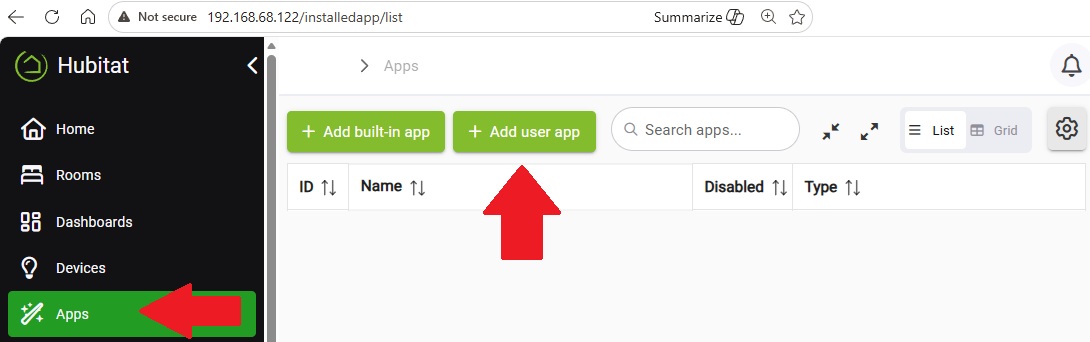
Step 6 : Go to "Apps" and click "+ Add user app".
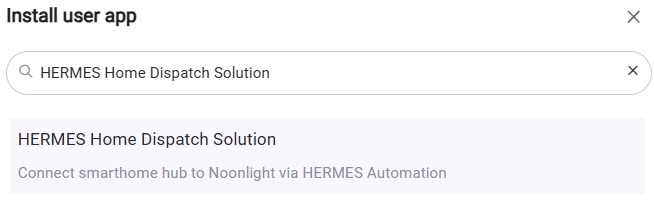
Step 7 : Search for the app and select it. It is now fully installed and ready for setup!
Method 2 : Hubitat Package Manager (HPM)
Step 1 : Perform steps 1 & 2 above from "Method 1 : Manual" to access the hub and enable the developer options.
Step 2 : Install HPM code per the instructions on their website.
Step 3 : Follow steps 6 & 7 above from "Method 1 : Manual" to install the HPM app onto your hub.
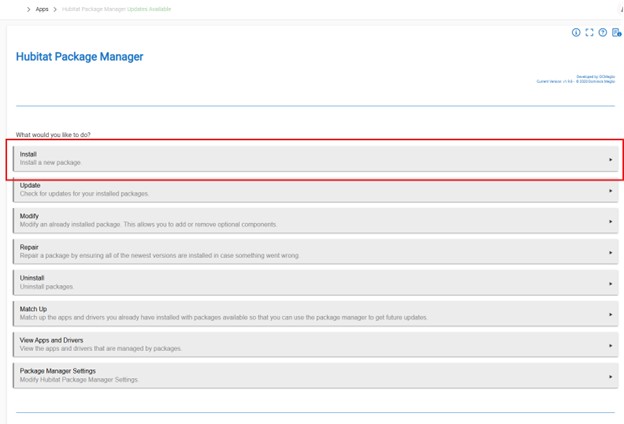
Step 4 : Within the HPM app, click on "Install".
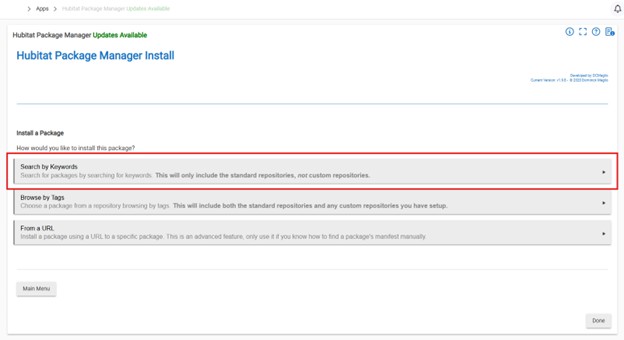
Step 5 : Select to search by Keyword.
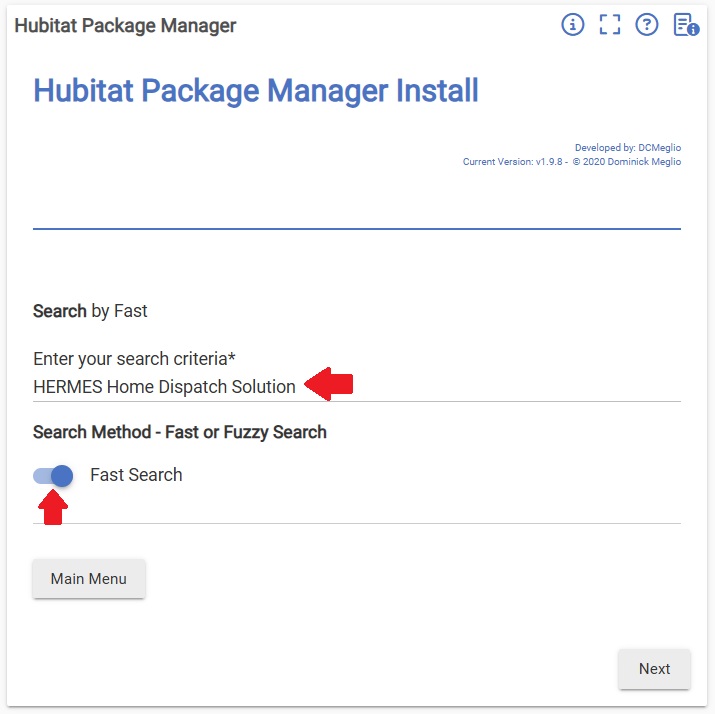
Step 6 : Search for "HERMES Home Dispatch Solution". Older versions of HPM won't find the app unless you use "Fast Search". Newer versions don't have fast/fuzzy search options and find the app with no issue.
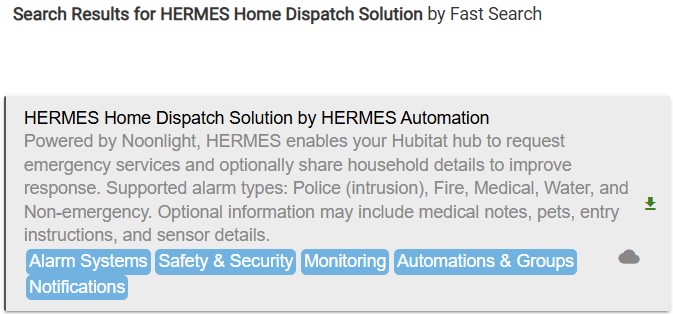
Step 7 : Select the app from the search results.
Step 8 : Click next to continue.
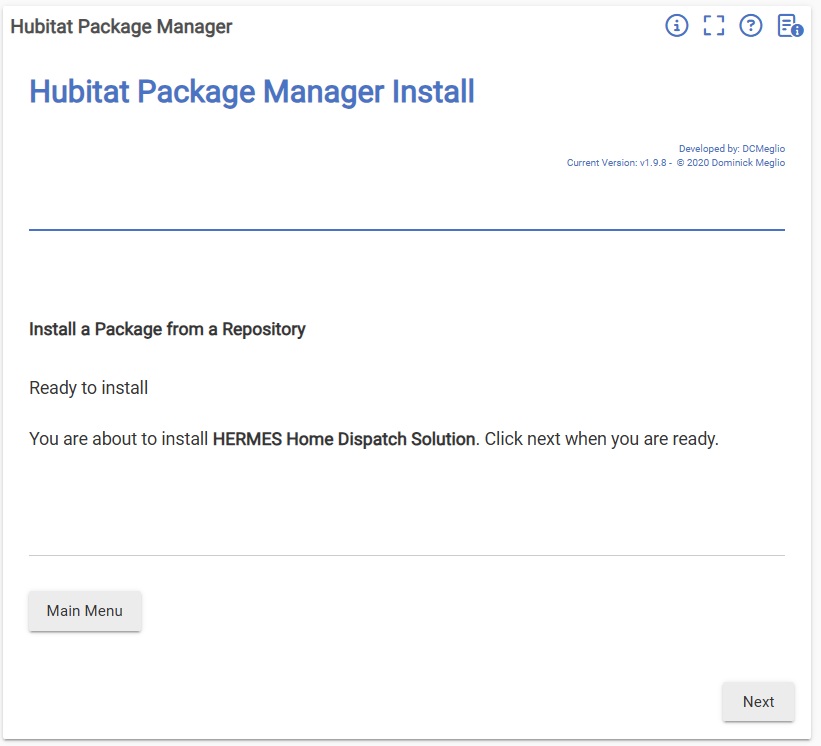
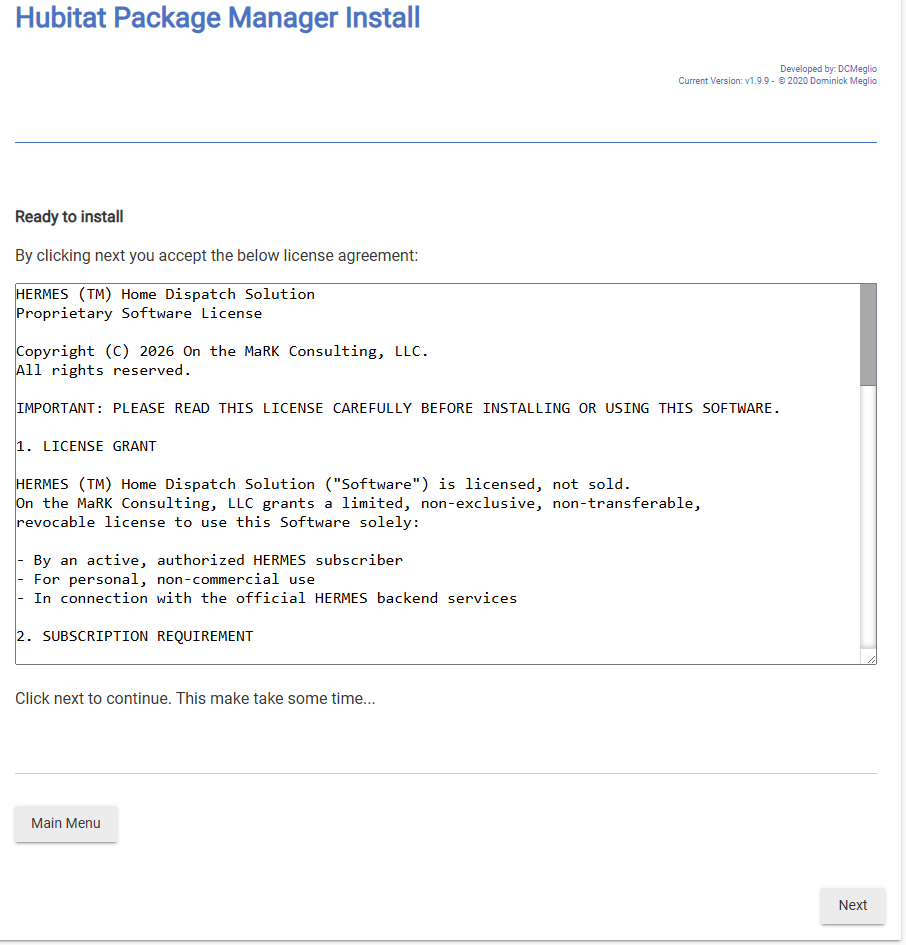
Step 9 : Agree to the License Agreement. After agreement, HPM will automictically install the app code and you'll see it in the "Apps code" (in the "FOR DEVELOPERS" section) of your hub.
Step 10 : Perform steps 6 & 7 from "Option 1 : Manual" above to install the HERMES app. After those steps, it should be fully installed and ready for setup!